Smart Voice Mouse User Guide (MR08)
This is a mouse that integrates voice technology, AI technology and multi-model fusion. It embeds intelligent AI to make office work easier. The mouse adopts an ergonomic and lightweight design, making it more comfortable and effortless to use. It also features Bluetooth, 2.4GHz, multi-device switching and a customizable A key. It supports Win7 / Win8 / Win10 / Win11 and macOS, and translation among hundreds of languages including English, French, Italian, German, Japanese and Korean.

1. Device Connection
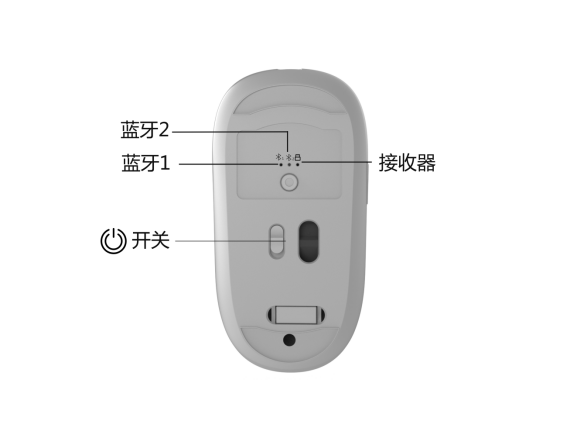
Method 1: USB receiver mode
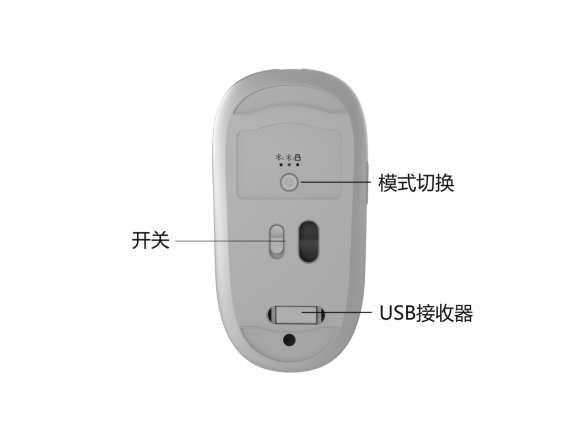
1. Take out the USB receiver and plug it into a USB port on the computer. Once the computer recognizes it, the mouse is ready to use. The receiver indicator turns off after a few seconds.
2. Slide the power switch on the bottom of the mouse to ON.
Method 2: Bluetooth mode
1. Turn on the power switch.
2. Briefly press the mode switch key to switch to Bluetooth 1 or Bluetooth 2.
3. Turn on Bluetooth on the computer, search for devices and connect to MR08. The mouse indicator turns off and the mouse is connected. (If MR08 does not appear in the Bluetooth list, long-press the mode switch key to enter pairing mode; the mouse indicator will blink quickly.)
2. Download the Client
Method 1: Press and hold the scroll wheel for 6 seconds to open the download page directly.
The mouse comes in two versions: AI Voice and AI Large Model.
AI Voice: mainly provides voice dictation, voice translation and smart screenshot.
AI Large Model: adds AI large-model features on top of the AI Voice version, making it even more powerful and convenient.
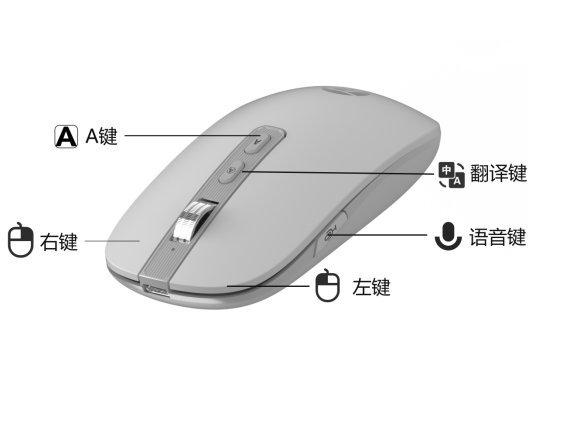
Basic Voice Mouse Functions
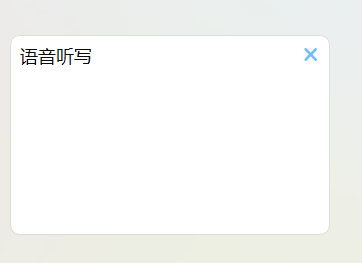
[Voice Dictation]
Step 1: Place the cursor in an editable text area such as a text document or Word.
Step 2: Press and hold the voice key. The voice dictation window appears and you can start voice typing.
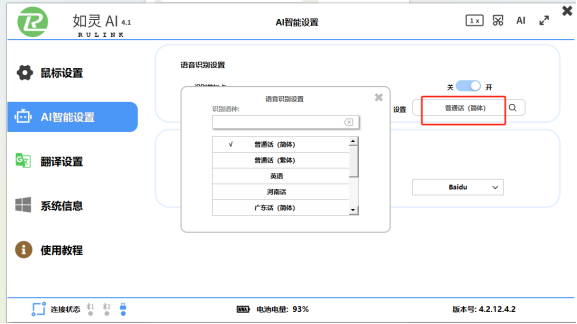
Dictation language settings
Open the Rulink client to customize the recognition language and dialect.
[Voice Translation]
Step 1: Place the cursor in an editable text area such as Word, a document, WeChat or WhatsApp.
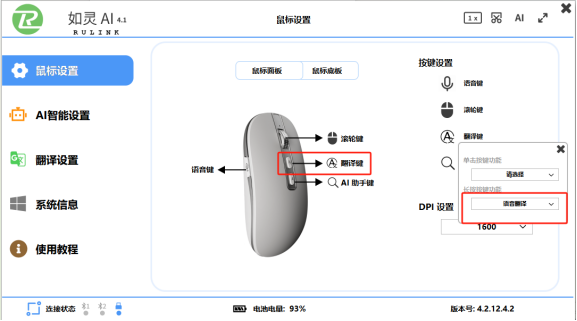
Step 2: Press and hold the translation key and start speaking. Release the key to get the translated text in the target language.
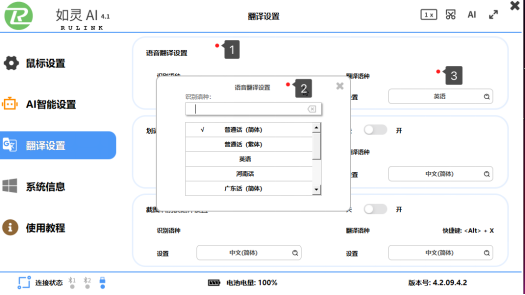
Voice translation language settings
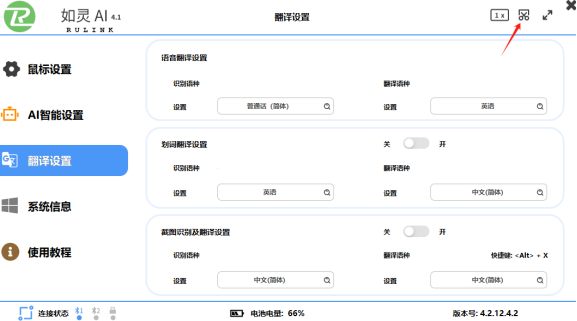
Open the Rulink client and, in Translation Settings, choose the recognition language and the target language.
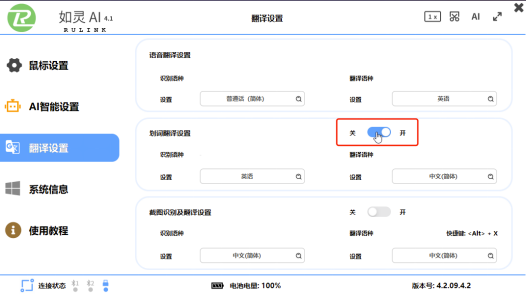
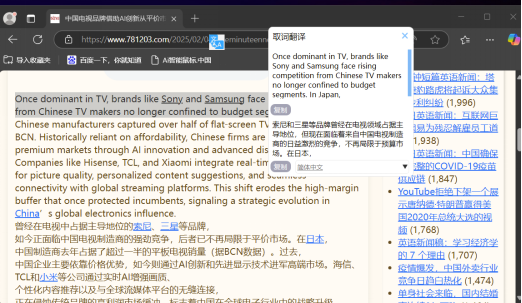
Select-to-translate
Open the Rulink client, select the text you want to translate, and the translation appears. Multiple languages are supported.
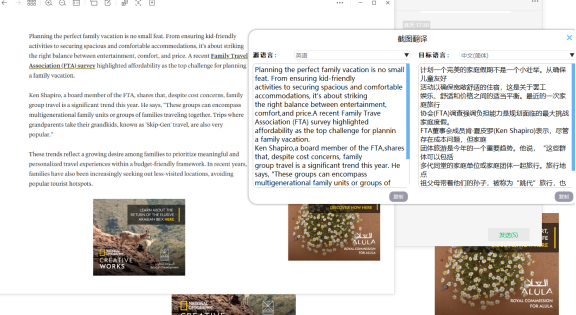
Screenshot translation
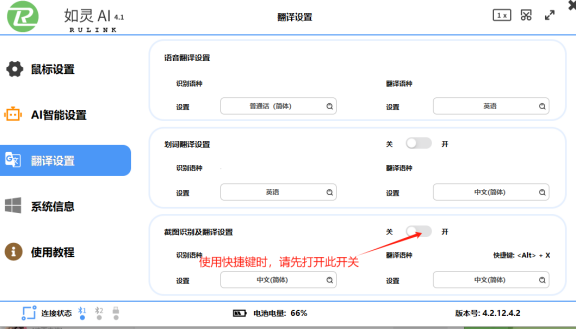
Start the Rulink client, then click the screenshot icon in the upper right corner or use the shortcut Alt+X.