Smart Voice Mouse User Guide (MR025)
This is a mouse that integrates voice technology, AI technology, and multiple models. It embeds intelligent AI to make office work easier. And the mouse adopts ergonomic design and lightweight design, making it more comfortable and easy to use. In addition, it also has features such as Bluetooth, 2.4GHz and multi device switching, custom A key, etc. Supports Win7/Win8/Win10/Win11 and Mac systems, and supports translation into hundreds of languages including English, French, Italian, German, Japanese, Korean, and more.
1、 Device Connection
Method 1: USB Receiver Mode
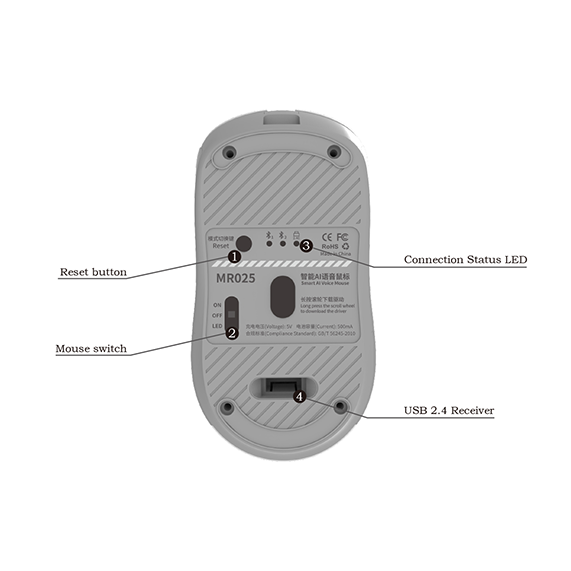
1. Remove the USB receiver and insert it into the computer's USB port. Once the computer recognizes it, the mouse function can be used. After a few seconds, the receiver indicator light will turn off
2. Turn the power button on the back of the mouse to the ON position
Method 2: Bluetooth Connection Mode
1. Turn on the power switch
2. Short press the mode switch button to switch the mode to Bluetooth 1 or Bluetooth 2
3. Turn on the computer's Bluetooth function, search for the device and connect to "MR025". The mouse indicator light will turn off, and the mouse will successfully connect to the computer (if the Bluetooth name "MR025" cannot be found, please long press the mode switch button to pair, and the mouse indicator light will flash quickly)
2、 Download the client
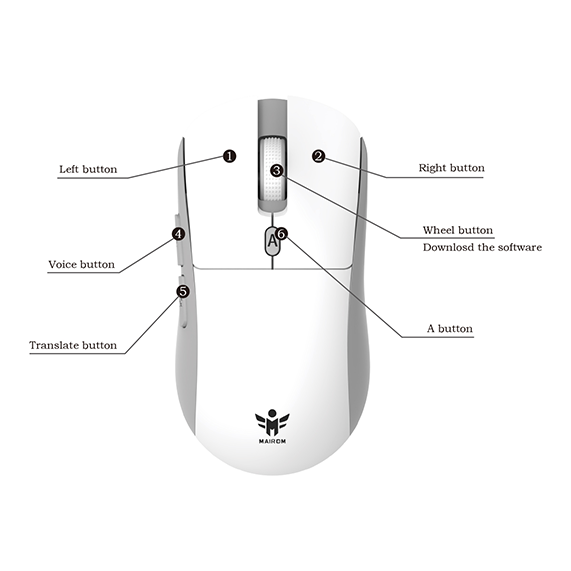
Method 1: Hold down the mouse wheel button for 6 seconds to directly jump to the download webpage
The mouse is divided into AI voice version and AI large model version.
AI voice version: It mainly has three functions: voice dictation, voice translation, and intelligent screenshot;
AI big model version: Added the function of AI big model on the basis of voice version, making it more powerful and convenient.
Basic functions of voice mouse
【Voice dictation】
Step 1: Please place the cursor in an editable text area such as a text document or Word
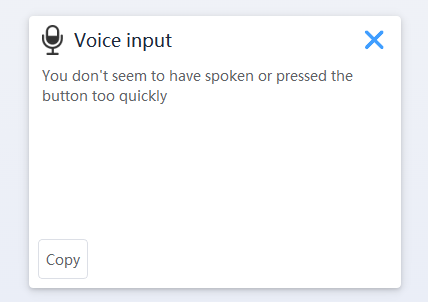
Step 2: Long press the voice button to pop up the voice dictation window, and you can achieve voice typing.
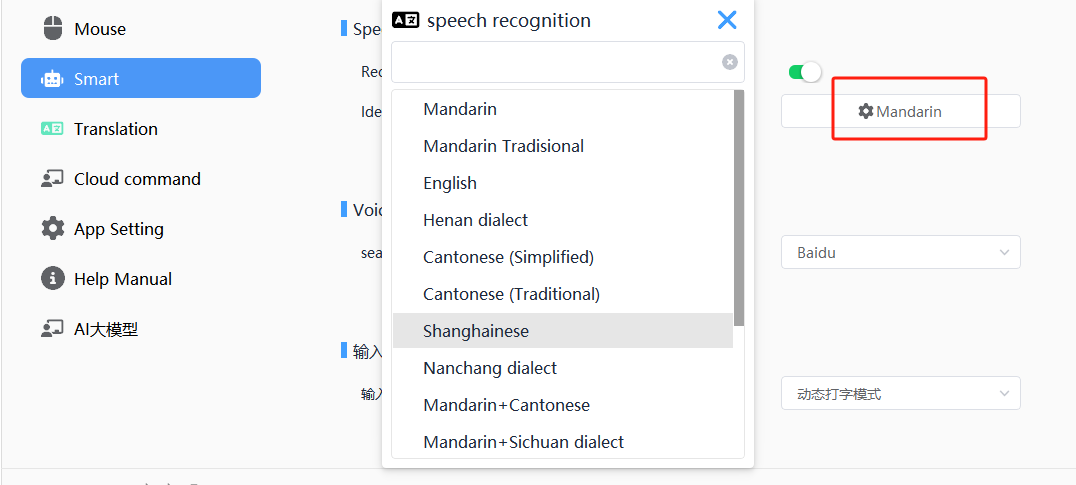
Dictation language settings
Open the client to customize the recognized language and dialect
[Voice Translation]
Step 1: Please place the cursor in editable text areas such as Word, document text, WeChat, and WhatsApp chat tools
Step 2: Long press the "translation button" to start speaking. Release the button to obtain the translated text content in the target language
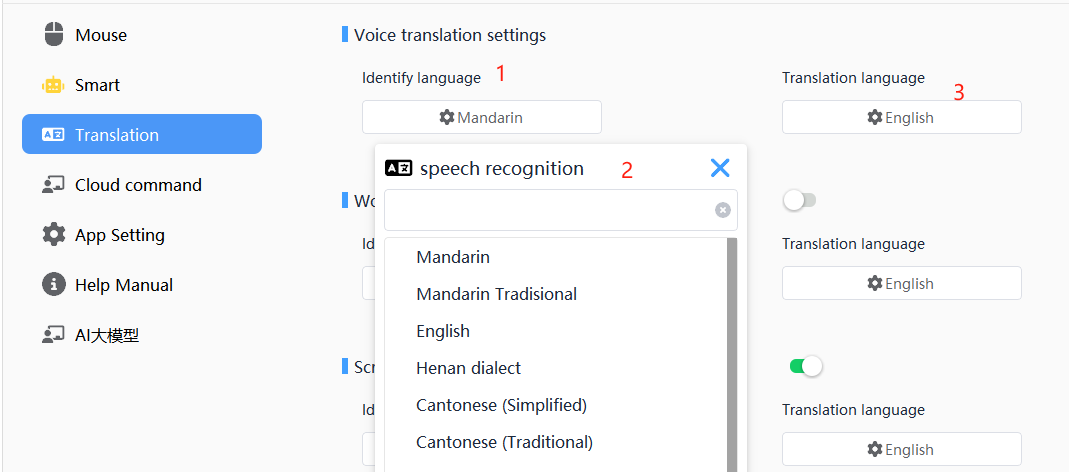
Language settings for voice translation
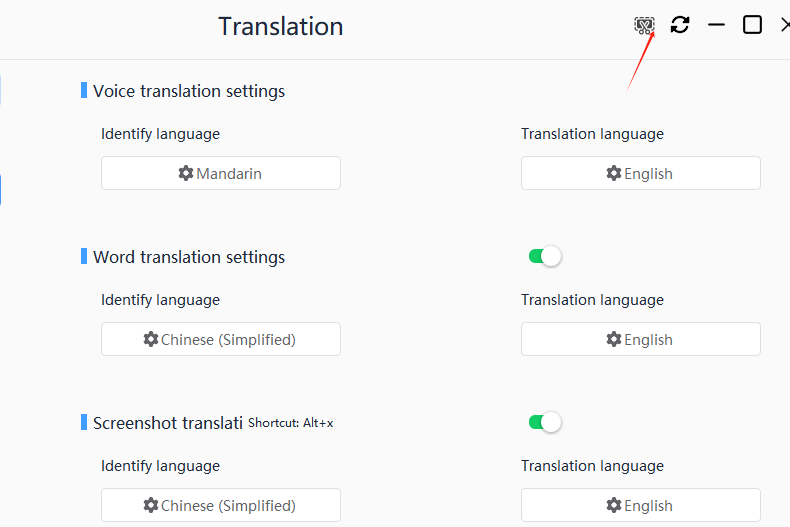
Open the Rulink client and in the translation settings, customize the selection of "language recognition" and "translation language"
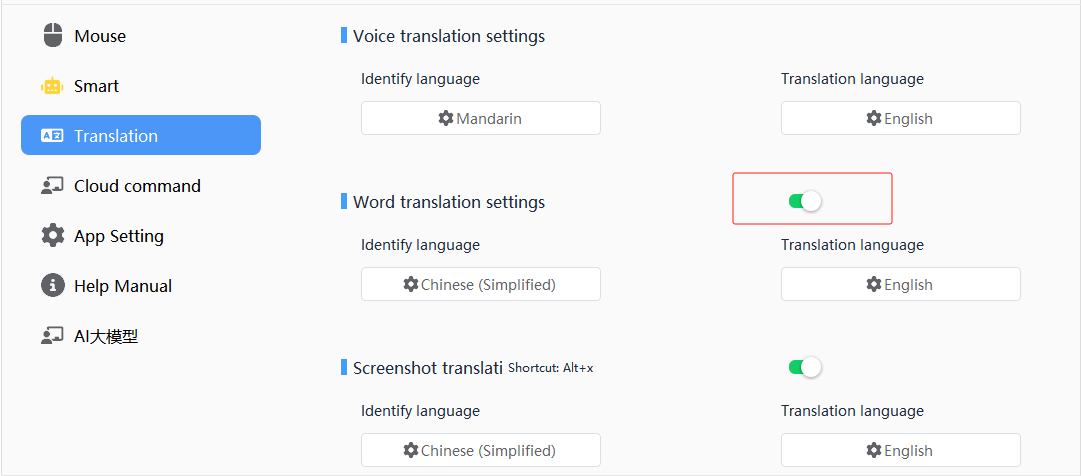
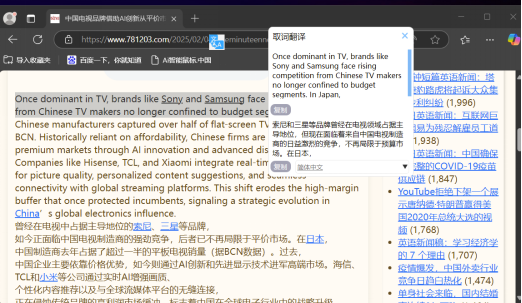
Translating Words
Open the client, select the text content to translate, and support translation in multiple languages
Screenshot translation
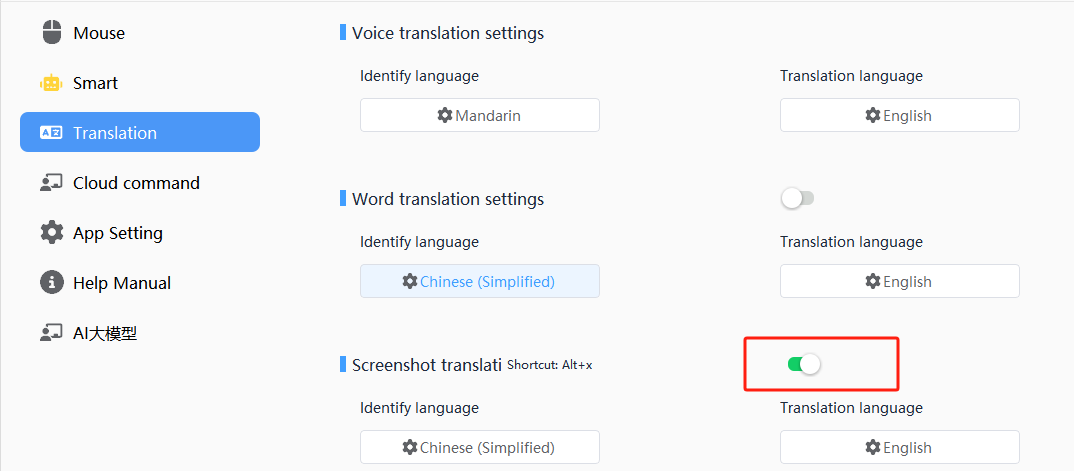
Start the client by clicking on the screenshot icon in the upper right corner or using the shortcut key Alt+X